Gift cards from switching on to redeeming
Step by step: how to switch on gift cards, choose amounts and a design, buy a test card and redeem it in a booking or at the till.

In short
- Gift cards need a connected Stripe account.
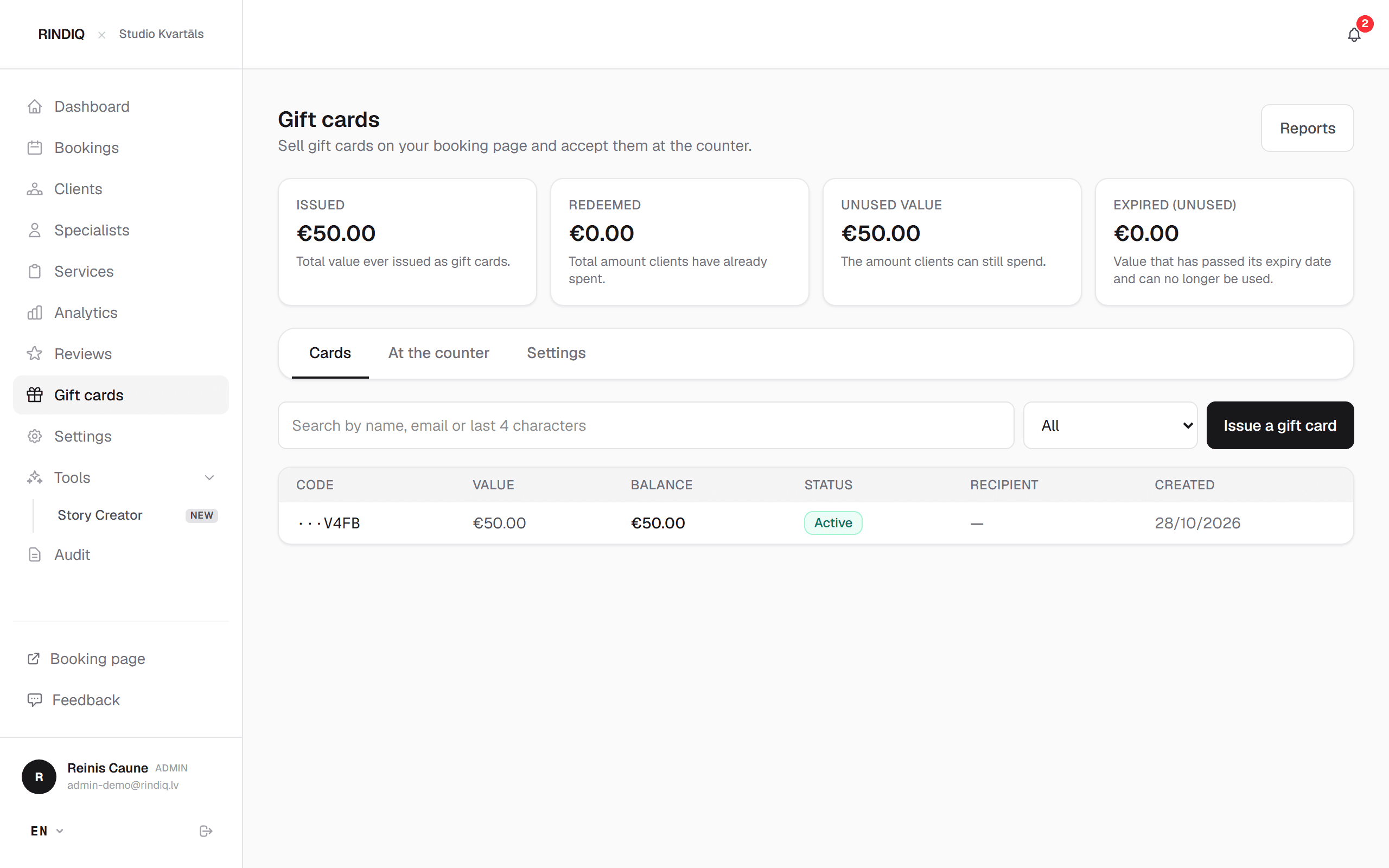
- A client can redeem a card when paying for a booking, or you can redeem it at the till.
- The sales report for your accountant is in settings.
Contents 9 parts
What you’ll get
After this guide, clients can buy a gift card from your booking page at any hour, and you won't have to print, forward or track anything by hand. The card arrives by email, the money goes to your Stripe account, and the balance goes down on its own.
This works on every plan. If you are thinking about Christmas, start now, because the first setup needs a few days. A plan by week is in Christmas gift cards: the plan to start in November.
1. Connect Stripe
A card sold online needs somewhere for the money to land. Open Settings → Integrations → Online payments and press Connect Stripe account. If Stripe is already connected, the status shows “Active”.
Without Stripe you can only issue cards in person after activation (see the next step), and you can't sell online.
2. Switch on and activate gift cards
In the side menu open Gift cards and the Settingstab. The page itself shows what still needs doing. If gift cards aren't activated for your account yet, you'll see a request to activate them. You can fill in the settings now, and they take effect after activation.
3. Choose amounts and a design
In settings, set the amounts clients see when buying. Clients can also enter their own amount, from €15.
RINDIQ builds the standard card from your accent colour and business name. If you want your own, you can upload your own design. You can check it in a preview before publishing, and the amount and code stay real text, so the code can be copied.
4. Test it as a client
- Open your booking page on a phone.
- Find the gift card section and press buy.
- Walk through the steps: amount, details, payment.
- Check the emails the buyer and the recipient receive.
5. Share the link
Add ?gift=1 to the end of your booking page address and the purchase opens straight away. Use this link in Instagram stories or messages, so nobody has to hunt for the right place on the page.
6. How a card gets used
- Online.When booking, the client opens “I have a gift card” and enters the code. The amount is deducted, and they pay only the difference by card. There is no second card fee on the gift card part.
- In person. Open Gift cards → At the counter and enter the code and amount. The balance goes down at once.
Any remaining balance is used next time. If a booking is cancelled, the card gets the used amount back.
7. A card sold at the till
If a client pays in person, press Issue gift card in the Cards tab. Choose how it was paid, for example cash or card at the till, and add a reference so it can be matched to your records later. You can also issue a card for free, for example as an apology or a prize.
8. Records for your accountant
Settings → Reports → Sales report gives a monthly list of cards sold and used, and the balance, as PDF and Excel. Pass it to your accountant, and ask them how to record gift cards under your tax setup.
Try RINDIQ free for 14 days
No card needed. You can set up your booking page and deposits in about 5 minutes.
Read next
All articlesChristmas gift cards: the plan to start in November
A week-by-week plan to sell gift cards in December and redeem them in January without chaos.
Gift cards: are they worth it and how to sell them online
Why gift cards bring in new clients and how to sell them online without paper.
Rebook before they leave
The simplest way to fill your calendar: the next visit, before the client leaves.