Schedule modes: free schedule, fixed times or manual only
Can a client pick any time, only times you set, or not book themselves at all? How to choose a mode and set it up properly.

In short
- A free schedule suits treatments of different lengths.
- Fixed times suit you if you want full control of the day.
- Manual means clients see the page, but you make the bookings.
Contents 8 parts
What you’ll get
A calendar where clients book exactly how it suits you: at any free time, only at set start times, or only on the days you open yourself.It's one setting, and it changes the shape of your whole day.
The mode is chosen per specialist and per location, and you can change it at any time.
Three modes in one sentence each
- Open schedule. Clients see every free time in 15-minute steps. Good when durations vary a lot and you want to fill every gap.
- Fixed start times. Clients can only start at your times, for example 9:00, 12:00 and 15:00. Good for an orderly day without 30-minute holes.
- Manual times only. The specialist is closed until you open a specific day. Good when your schedule differs every week. Available from Professional.
Quick quiz
Which mode suits you?
I work different days every week, depending on my other job.
My lash treatments take 2 hours and three fit in a day. I don’t want gaps between them.
My treatments range from 20 minutes to 2 hours, with many clients a day.
1. Open the schedule
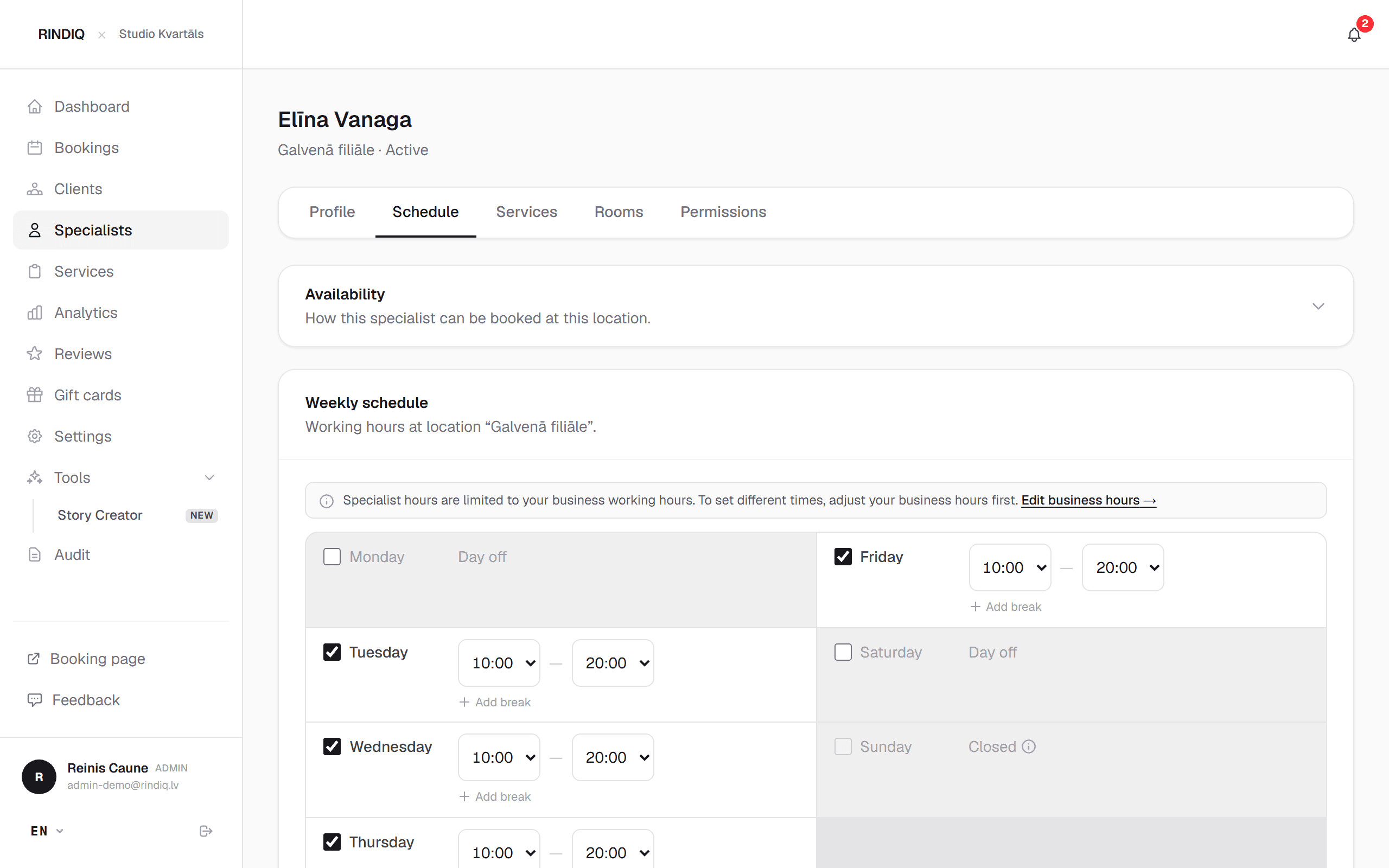
Open Specialists → [name] → Schedule. At the top is the Availability card with the three modes, and below it the weekly schedule.
2. Open schedule
Tick your working days and hours. One day can have several time ranges, for example 9:00 to 13:00 and 14:00 to 19:00, so lunch is in the schedule. Clients see times that the chosen treatment really fits into.
3. Fixed start times
When you choose this mode, a start-time editor appears below it. Enter the times and the block length, and assign them to days of the week.
Free time between blocks is protected by default: clients don't see it, and no holes appear in your day. If you want to offer it one day, open it in the calendar with one tap. If a treatment is longer than a block, you can also let it run over the following times.
4. Manual times only
In this mode the weekly schedule isn't used. In the calendar, under Specific date exceptions, open the days you work with specific hours. Until then clients can't choose you.
If you chose this mode and your page says “no times”, that's usually why: no day has been opened yet.
5. Changing mode with bookings in place
The system shows bookings that no longer fit the new mode and asks what to do: keep them all, cancel them, or cancel and invite clients to pick another time. Nothing is silently cancelled.
6. Check it as a client
Open your booking page (Booking pagein the side menu), choose a treatment and look at the times. If you see a time every 15 minutes in fixed mode, the start times haven't been assigned yet.
How to work out how long a day you actually want is in How many appointments a day is too many? A daily limit against burnout.
Try RINDIQ free for 14 days
No card needed. You can set up your booking page and deposits in about 5 minutes.
Read next
All articlesHow many appointments a day is too many? A daily limit against burnout
How to find your limit, work out your real working day and set a cap that protects you from burnout.
Phone ringing, hands full: taking bookings during a treatment
How to take bookings without interrupting the client in your chair.
Reliability score: deposits only for those who don’t show up
A tutorial: a deposit only from clients who have skipped visits before.